You Think You’re Done. You’re Not.
There’s a moment every parent has with streaming apps.
It usually happens sometime between “Can I watch something?” and “Dinner’s ready.”
Your kid wants Netflix on their tablet. You say sure. You open the app. You tap around for a minute. Create a profile. Click the little checkbox that says Kids.
The colors get brighter. The thumbnails get friendlier. Suddenly everything looks like it was curated by a preschool teacher who also bakes organic muffins.
And you feel good.
You lean back for a second and think, Nice. Look at me. Setting boundaries. Protecting the youth.
Responsible Parenting™ has been achieved.
Then you go make tacos.
Here’s the problem:
Setting up a Netflix Kids profile feels a lot like installing a really nice front door… on a house that doesn’t currently have walls.
Technically, yes. There is a door.
But the rest of the security situation is… aspirational.
Because that cheerful little Kids profile? That’s just one setting. ONE. Netflix has several others that actually matter — profile locks, maturity restrictions, viewing reports — the stuff that prevents a moderately curious child from wandering out of the kiddie section and straight into whatever action movie has the most explosions on the cover.
And Netflix does not exactly wave a flag about this.
There’s no message that says,
“Hey, your third grader watched half of an R-rated action movie at 10:47 PM on Wednesday."
You just get… silence.
Which, in the world of parenting, is rarely a sign that everything is working perfectly.
It’s more like the digital equivalent of a toddler quietly playing in the other room.
And if you’ve ever had a toddler quietly playing in the other room, you already know how that story usually ends.
What You Need to Know First
Netflix’s parental controls are actually pretty solid — if you configure all of them. The problem is that most parents stop after the Kids profile and never touch the rest.
A few things before we start. You’ll need access to a web browser (not the Netflix app) for most of these settings. Netflix, in its infinite wisdom, requires a browser for the important stuff like maturity ratings and PIN settings. You’ll also need your Netflix account password — not just the ability to open the app. And you should plan to do this when your kids aren’t watching over your shoulder, because you’re going to be setting PINs they shouldn’t know.
One more thing: Netflix allows up to 5 profiles per account. That number matters, and we’ll get to why in Step 5.
The Steps
Step 1: Set Up (or Fix) the Kids Profile
After logging in on a web browser, you’ll see your existing Netflix Profiles.
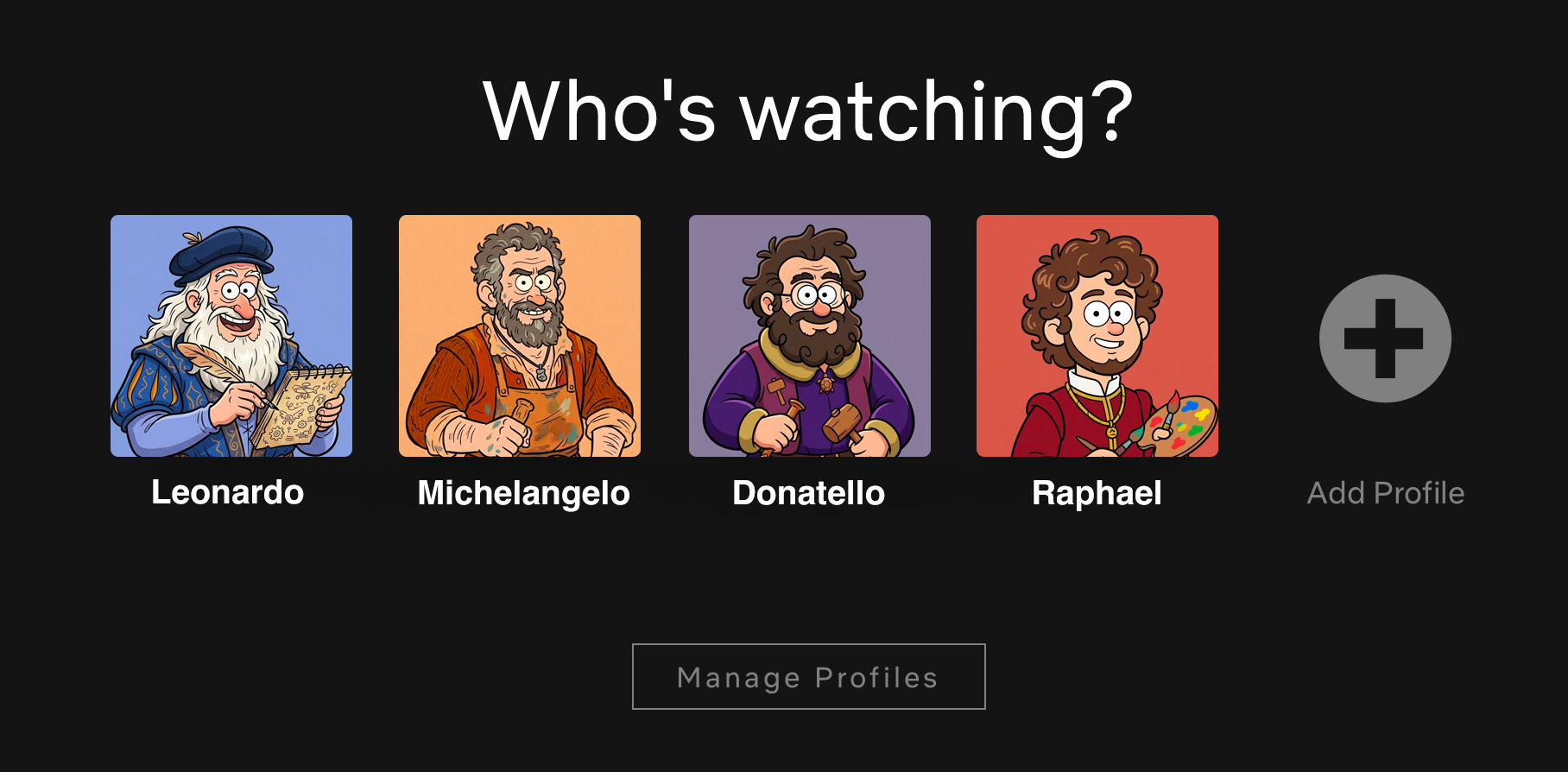
Netflix Profile Screen
If you haven’t already, click Add Profile to create a profile for your child. Check the box that says “Kid’s Profile.” That single checkbox does a surprising amount of work — it caps content at PG and age-12-and-under ratings, swaps in a simplified interface with bigger thumbnails, locks your kid out of account settings, blocks Netflix Games entirely, and limits search results to the kids-only catalog.
If you already have a Kids profile set up, great. But here’s what that checkbox doesn’t do: it doesn’t distinguish between a four-year-old and an eleven-year-old. A Kids profile treats them the same. So if your child is on the younger end, you’ll want to tighten the maturity rating further in Step 2. And if your kid is a teenager, a Kids profile is probably too restrictive — you’ll want a standard profile with custom maturity limits instead (also Step 2).
Step 2: Set the Right Maturity Rating
Open a web browser and go to your Netflix account page, netflix.com/account. Navigate to Adjust Parental Controls and select your child’s profile.
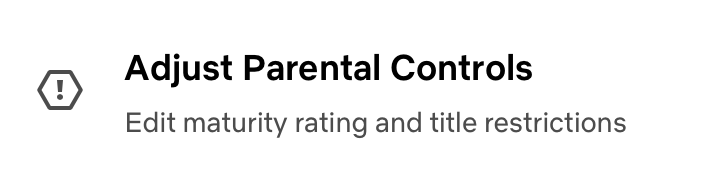
You might be sent a security code to prove your identity.
Under Profile Maturity Rating, you’ll see the maturity rating slider.

The maturity rating slider — set the ceiling, and everything above it disappears.
Netflix breaks content into tiers:
Think of the maturity rating like a height requirement at an amusement park. Everything below the line is accessible. Everything above it disappears. Your kid won’t even see the restricted titles in search results or recommendations.
One thing to know: Netflix’s ratings aren’t static. A show that starts as TV-14 in Season 1 can get bumped to TV-MA in Season 3 if the content gets heavier. If your kid’s ceiling is set at TV-14, they’ll lose access to that show mid-binge with no warning. That’s annoying, but it’s actually the system working as intended. The alternative — the show quietly escalating in maturity while your settings stay the same — is worse.
Step 3: Block Specific Titles
While you’re still on the Adjust Parental Controls page, scroll down to Title Restrictions. This lets you block specific movies or shows by name, even if they technically fall within your kid’s maturity rating.
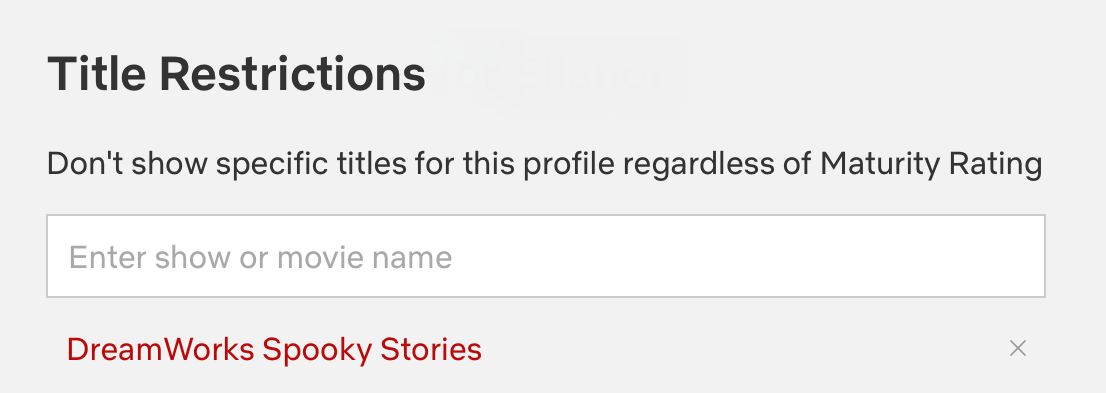
Title Restrictions Settings
Why would you need this? Because maturity ratings are broad categories, not surgical tools. A TV-PG show might still have themes or scenes you’d rather your eight-year-old skip. Title blocking lets you handle those edge cases without changing the overall maturity ceiling.
Type the title, select it from the dropdown, and it vanishes from that profile. Quick and painless. But — and this is important — title blocks are per-profile. Blocking a show on one child’s profile doesn’t block it on another’s. If you’ve got multiple kids, you’ll need to do this for each one.
Step 4: PIN-Lock Every Adult Profile
This is the step most parents skip, and it’s the one that matters most.
Go back to Profiles, select your profile (or any adult profile on the account), and set a Profile Lock PIN — a 4-digit code required to open that profile.
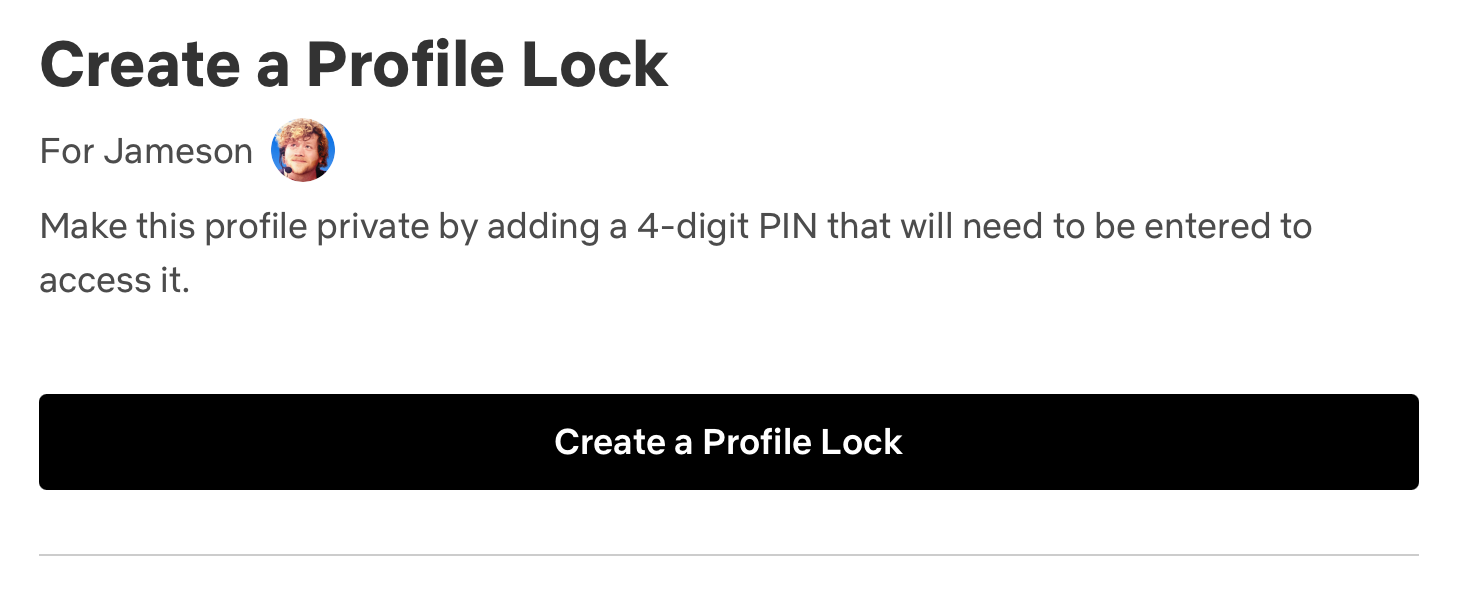
Profile Lock Settings
Do this for every non-kid profile on the account. EVERY. SINGLE. ONE. Your profile, your partner’s profile, your teenager’s unrestricted profile — all of them.
Without this, your child can simply back out to the profile selection screen, tap your name, and suddenly they’re standing in the middle of the entire Netflix catalog like they just wandered into Costco with your credit card.
Step 5: Enable “Require PIN to Add New Profiles”
This is the sneaky one. Netflix allows up to 5 profiles. If your family only uses three or four, there’s an empty slot sitting there like an unlocked back door. And kids — resourceful, determined, smarter-than-you-think kids — have figured out that they can create a brand new profile with zero restrictions using that empty slot.
After you set a Profile Lock PIN on the main (first) profile on your account, a new option appears: “Require a PIN to add new profiles.” Turn it on. This ensures nobody can create a fresh, unrestricted profile without your 4-digit code.
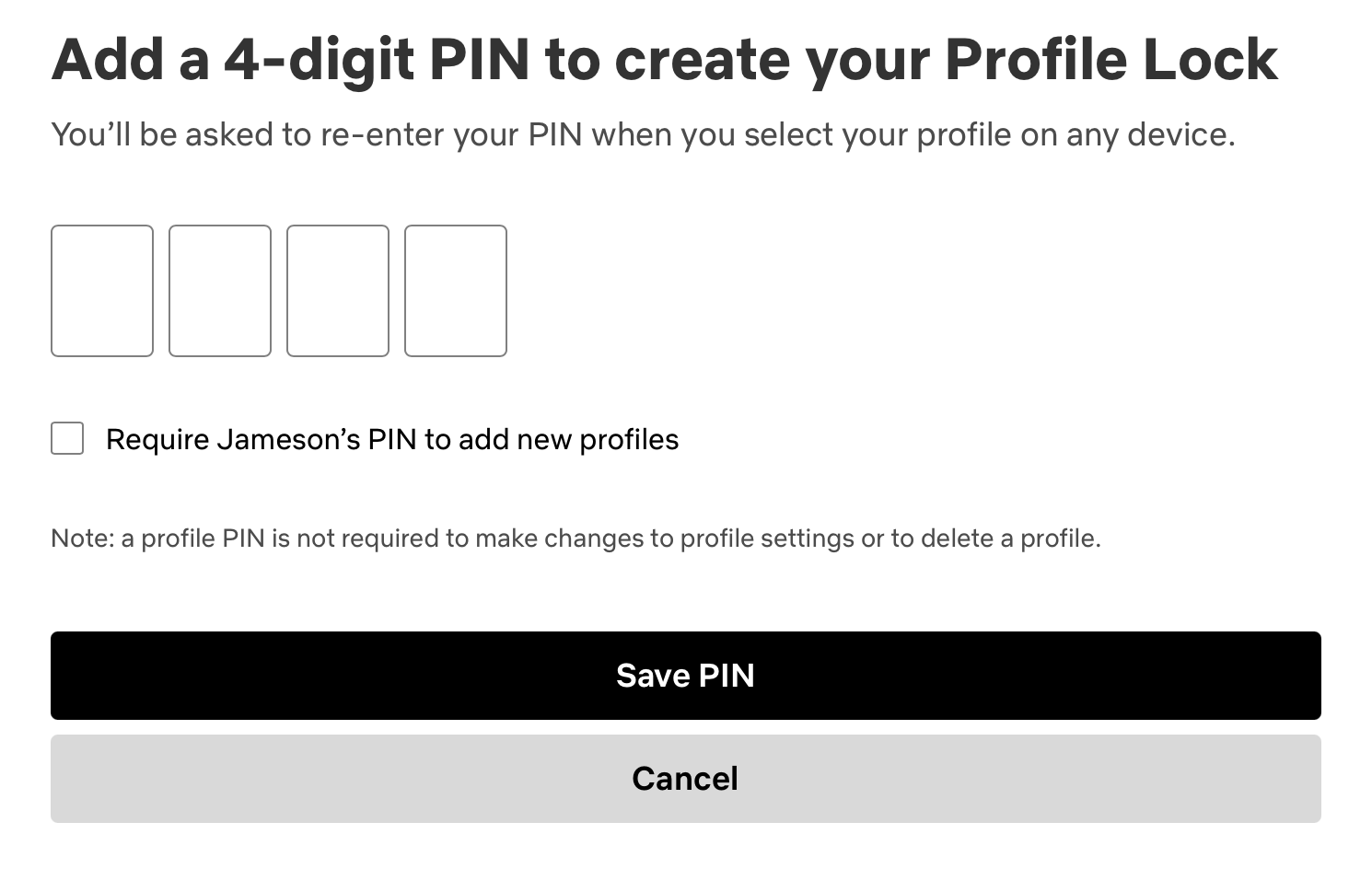
Require PIN Settings
This option only shows up while you are setting a PIN on the primary profile.
Step 6: Disable Autoplay and Check Viewing History
Two quick cleanup items while you’re in the settings.
First, go to Playback Settings on your child’s profile and turn off “Autoplay next episode” and “Autoplay previews while browsing.”
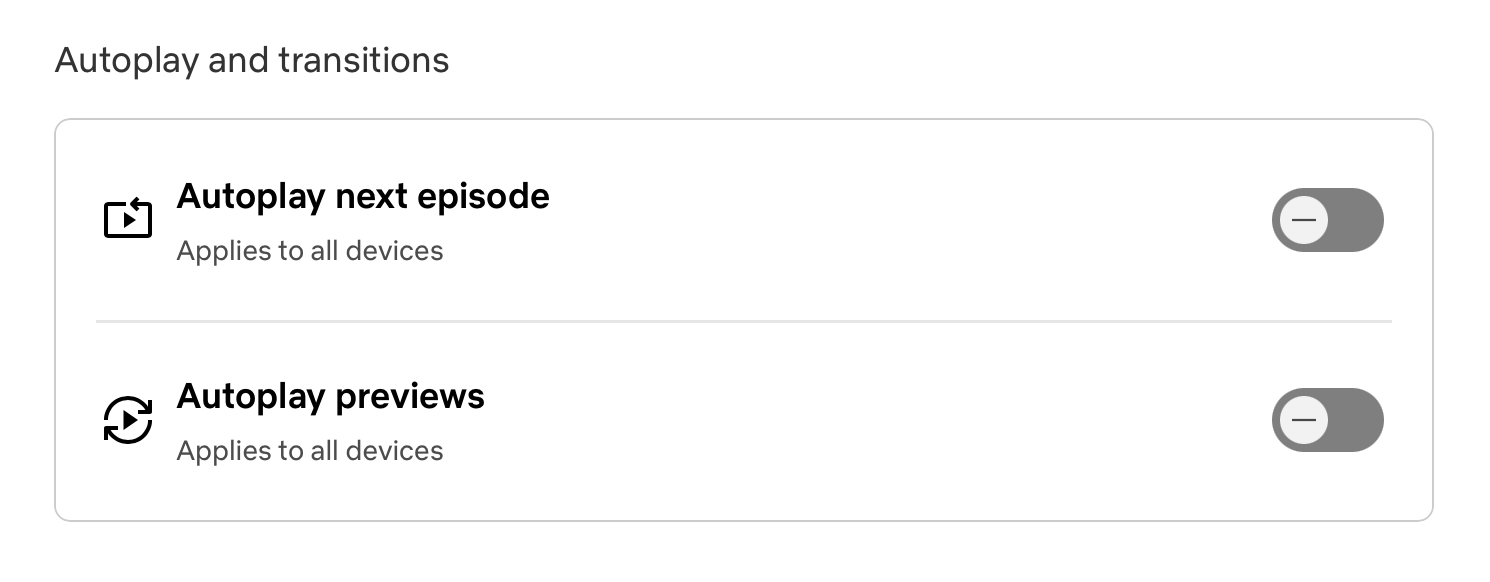
Autoplay Settings
This won’t limit screen time (Netflix has zero built-in screen time controls — no daily limits, no scheduling, no bedtime cutoff, nothing). But it does kill the automatic binge loop. Instead of the next episode rolling seamlessly, your kid hits a stopping point where they have to choose to keep watching. It’s a speed bump, not a wall. But speed bumps help.
Second, bookmark this: Account > Adjust Parental Controls > [your child’s profile] > Viewing Activity.
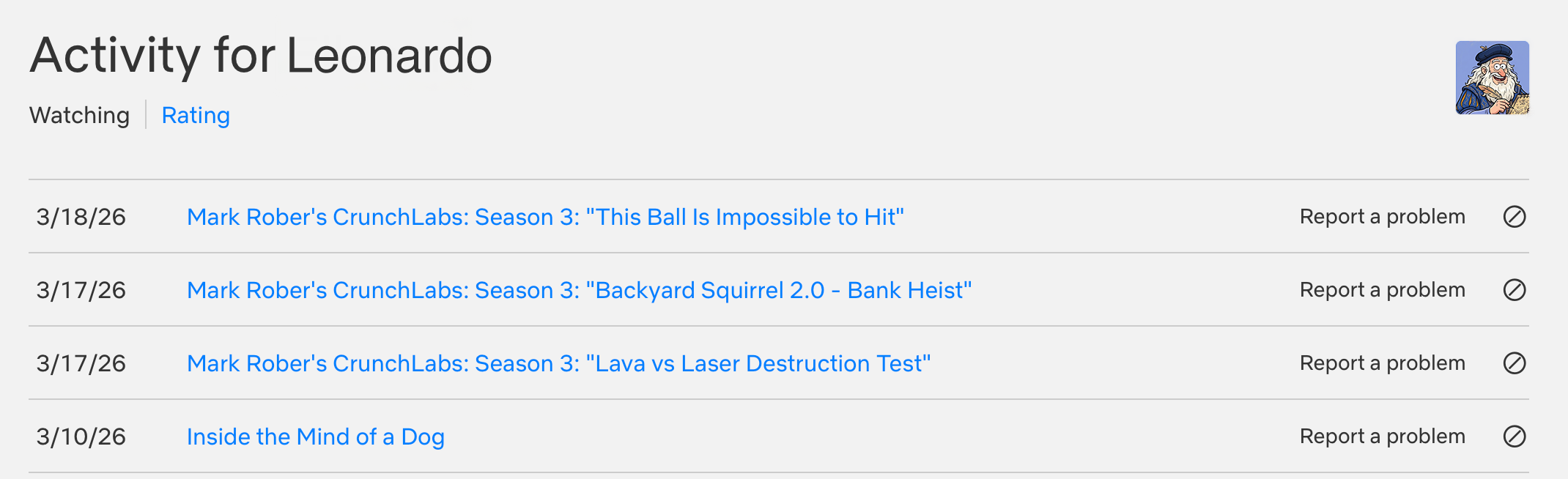
Viewing Activity
This is Netflix’s record of everything watched on that profile, with dates. You can view it, download it as a CSV, and see exactly what’s been playing. Netflix will never proactively send you a report or an alert — you have to come here and check manually. Make it a habit. Maybe once a week, maybe every couple of weeks. Whatever works. But if you never check it, it doesn’t exist.
What to Do If Something Goes Wrong
The most common failure point: your kid already knows your Netflix account password. Netflix requires authentication for any profile changes, but anyone with the account password can change every parental control setting on the account. Netflix themselves warn parents not to share the account password with kids. If the password is already compromised, change it first, then come back and do Steps 1 through 6.
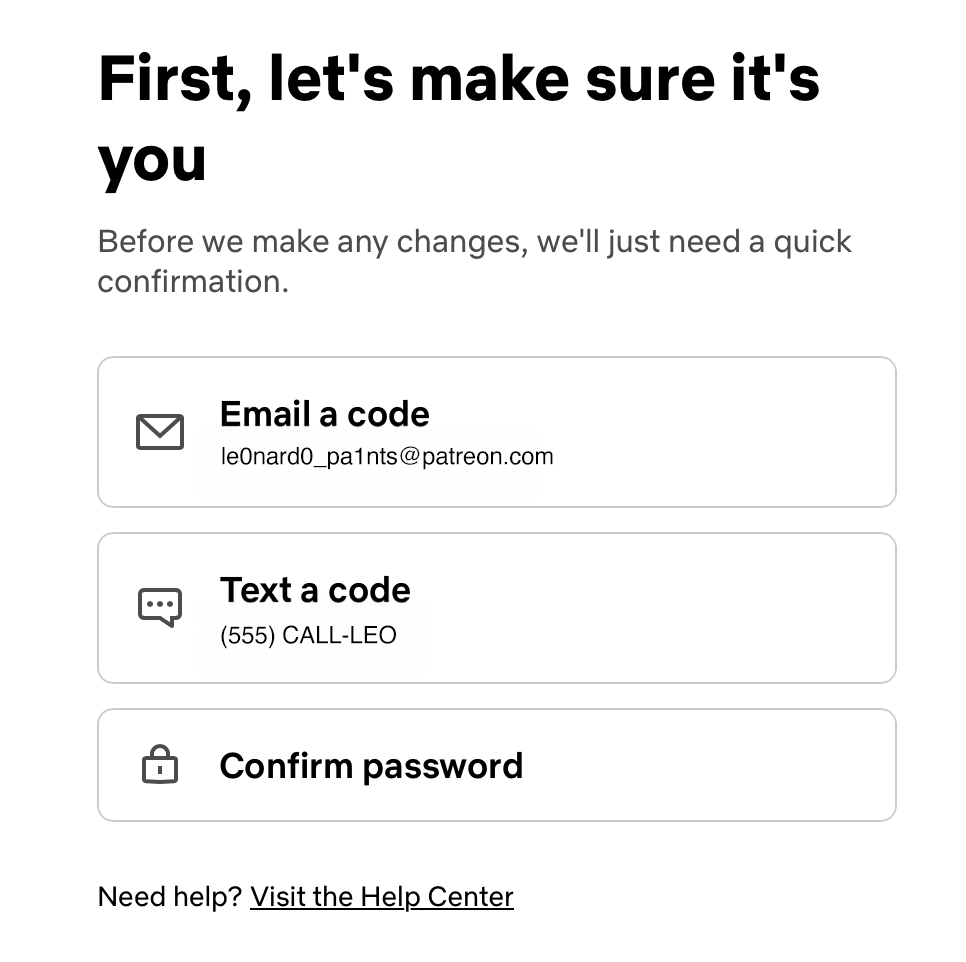
Netflix Authentication Options
The second most common issue: you set up the PIN locks, but your kid shoulder-surfed the code while you were typing it. PINs are only 4 digits. If your kid is the observant type (and they are — they’re always the observant type), change your PIN periodically and enter it when they’re not in the room. Or, you know, when they’re distracted by the iPad they’re not supposed to be using unsupervised. Parenting.
The Wrap-Up
Six steps, one sitting, and your Netflix account goes from “wide open with a friendly-looking front door” to actually protected. Kids profile, maturity rating, title blocks, PIN locks on every adult profile, PIN required for new profiles, autoplay off, and a bookmark to the viewing history page you’ll need to check yourself because Netflix sure isn’t going to remind you.
Now go make that dinner. You’ve earned it this time.